Get in touch
info@canadiancyber.ca


Rafia Rizwan

April 3, 2026
Learn how to convert your SharePoint ISMS into a live dashboard for ISO 27001 and SOC 2 evidence tracking, audit readiness, and continuous compliance.
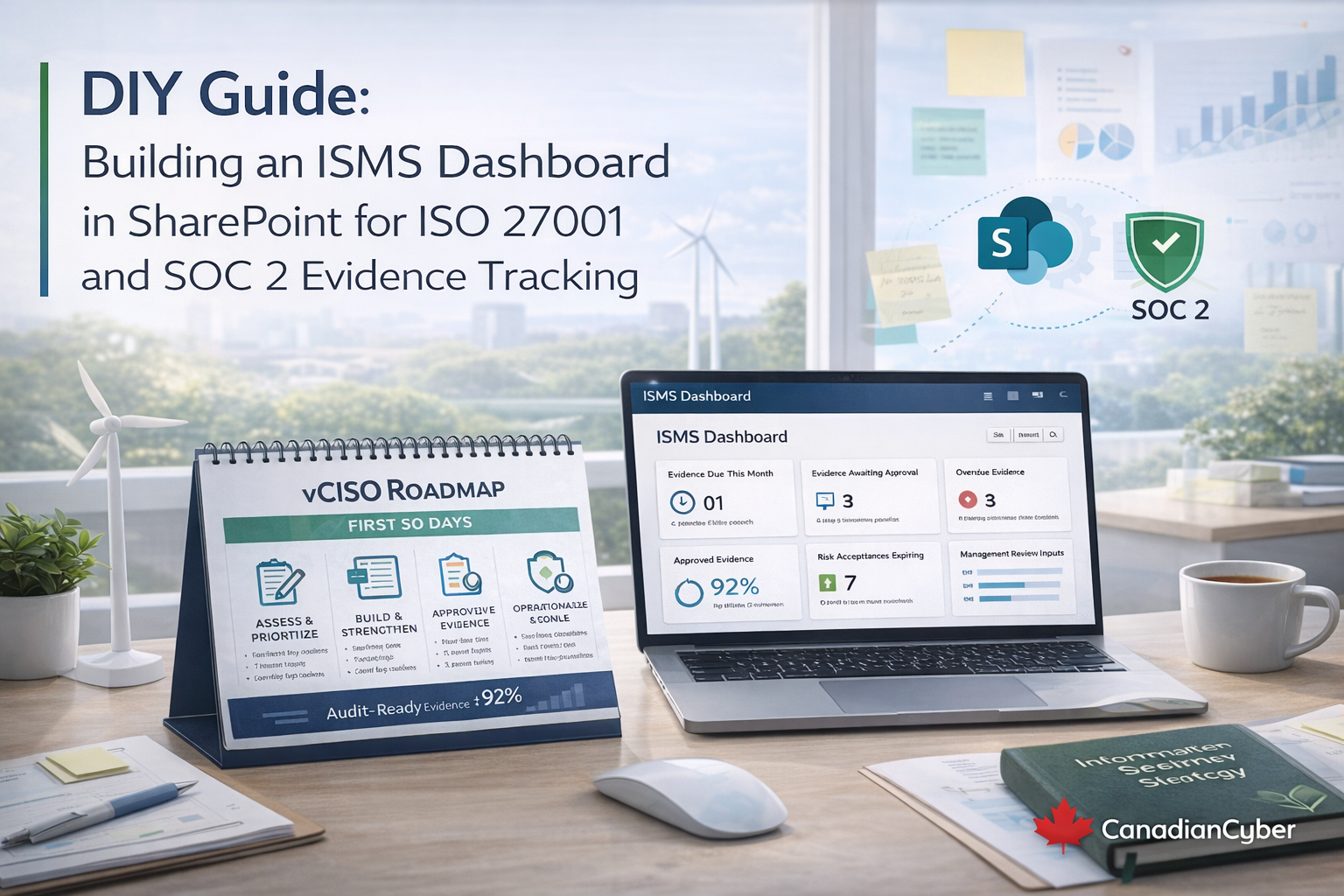
If you already have an ISMS in SharePoint, you have already done the hard part. You have a system of record. Policies live somewhere clear. Evidence has a home. Approvals may already exist. Corrective actions may already be tracked. That is a strong starting point.
But many SharePoint ISMS setups still feel static. They behave more like document libraries than operating systems. Teams upload files, but nobody can see what is due this month, what is overdue, what is waiting for approval, or what should go into management review without clicking through folder after folder.
A strong SharePoint ISMS should not feel like storage. It should feel like a live dashboard for evidence, actions, risk, and decisions.
A good ISMS dashboard gives answers instantly. It should tell leadership what evidence is due, what is overdue, what is approved, which controls are at risk, what corrective actions are stuck, and what decisions matter this quarter.
If SharePoint can answer those questions clearly, your ISO 27001 and SOC 2 readiness becomes much more stable. That is when the program starts feeling “always on” instead of seasonal.
Many ISMS portals begin with policies. That makes sense, but audits are won on operating evidence. If the dashboard centers policies instead of evidence, it usually ends up looking tidy but not useful.
Policies should still live in the portal. They just should not run the dashboard. Evidence should.
You do not need new software to make SharePoint feel live. You need consistent metadata. Once your evidence is tagged well, SharePoint views become the dashboard.
Whether evidence lives in libraries or lists, every recurring evidence item should carry the same core fields.
| Metadata field | Example values | Why it matters |
|---|---|---|
| Framework | ISO 27001 / SOC 2 / Both | Lets one evidence item support multiple frameworks |
| Control ID | Annex A ref, SOC 2 category | Links evidence directly to requirements |
| Evidence Type | Access review, vendor, backup, IR, training | Makes filtering and grouping useful |
| Period | 2026-Q1, 2026-04 | Supports quarter and month-based views |
| Owner | Role or named person | Drives accountability and escalation |
| Status | Draft, Submitted, Approved, Rework, Exception | Shows operating state clearly |
| Due Date | Date field | Powers due and overdue views |
| Approval Date | Date field | Shows when the item became audit-ready |
These are the highest-value views for an existing SharePoint ISMS. You do not need ten dashboards. You need a few views that actually change how people work.
Filter the view so the due date is in the current month and the status is not Approved. This becomes the monthly execution list for control owners.
Filter the view so the due date is before today and the status is not Approved. This becomes the escalation list. It is one of the most important views in the whole system.
Filter this to show items with status set to Submitted. This helps approvers clear bottlenecks and keeps evidence moving toward audit-ready status.
Group this view by Period and then by Evidence Type. This becomes your audit-ready pack view. When auditors ask for approved evidence for a quarter, this view should make retrieval quick and controlled.
This is one of the most useful views in the system. Filter it to approved evidence only. Limit it to selected categories. Exclude sensitive raw logs, admin lists, and internal diagrams where they are not needed.
This makes audits faster and helps you share only what is required without oversharing.
You likely already have an ISMS homepage. Add one page called ISMS Dashboard and display the important views as live tiles. One page is enough. Do not create ten pages for what should be one glance.
This dashboard page quickly becomes the best starting point for board pack preparation and monthly review meetings.
If your SharePoint ISMS already uses approvals, strengthen the rule. Evidence should not be treated as complete until it is Approved.
This solves a very common audit problem. Teams upload files, but nobody validates whether the evidence matches the control requirement. Approval becomes the proof that the evidence is authorized and reviewable.
If corrective actions are already tracked in SharePoint, the dashboard should expose them clearly. Two views matter most.
| View | Filter logic | Why it matters |
|---|---|---|
| Corrective Actions Overdue | Due Date before today and status not Verified or Closed | Shows what is slipping and needs escalation |
| Closed but Not Verified | Status is Closed but Verification Date is blank | Prevents paper closure without real proof |
Auditors care a lot about this because closure without verification is one of the easiest ways for repeat findings to appear.
This is one of the strongest features you can add. Management review is where ISO 27001 becomes real for leadership. If the dashboard can generate review inputs directly, your ISMS starts operating continuously instead of only around audits.
If leadership can prepare management review from the dashboard, the system starts creating value every month, not just during audits.
Keep KPIs simple, trend-based, and readable. The goal is not to show activity. It is to show condition.
These metrics are board-readable, audit-friendly, and strong enough to show whether the ISMS is actually moving.
Once the dashboard is in place, the monthly routine becomes much simpler and much more repeatable.
This is one of the easiest ways to stop the audit scramble. The work becomes smaller, clearer, and more continuous.
A strong SharePoint ISMS should not feel like a filing cabinet. It should feel like an operating dashboard. People should know what is due, what is blocked, what is approved, and what leadership needs to decide without opening ten folders.
Once metadata is consistent, approvals are meaningful, corrective actions are tied to verification, and management review pulls from the same live system, your ISMS becomes easier to run and much easier to defend.
That is how you turn SharePoint from a document library into a system that keeps ISO 27001 and SOC 2 readiness always on.