

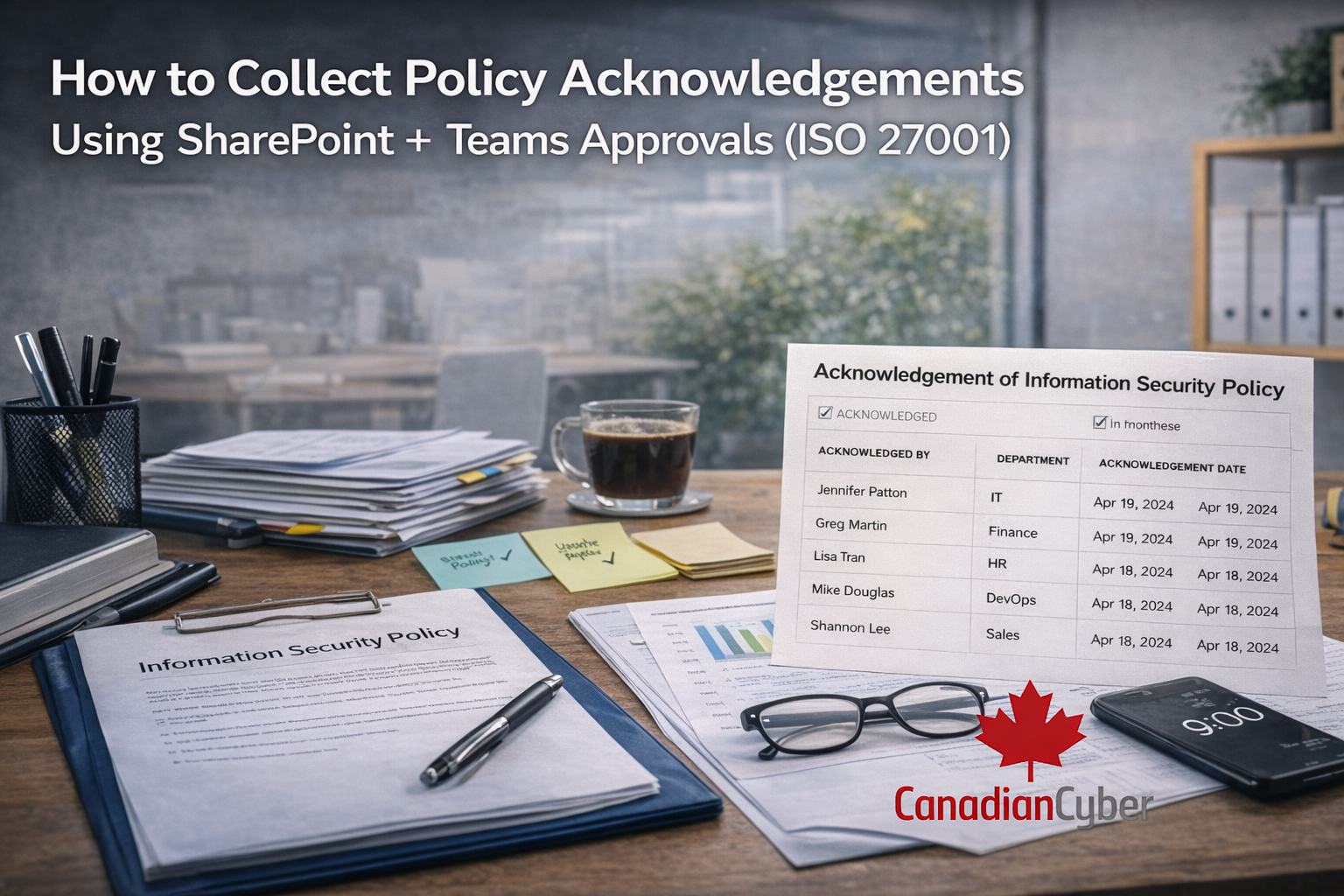
How to Collect Policy Acknowledgements Using SharePoint + Teams Approvals (ISO 27001)
Stop chasing replies. Build an audit-ready trail inside Microsoft 365.
If your policy rollout looks like this—email a PDF, ask people to reply “acknowledged,”
then try to prove it during an audit—you’re not alone.
For ISO 27001 (and most strong ISMS programs), you need more than “we shared the policy.”
You need proof that:
- the right people approved the policy,
- staff were notified,
- staff acknowledged it, and
- you can show the audit trail in minutes.
The good news: you can do this inside Microsoft 365 using SharePoint + Teams Approvals.
No separate GRC tool required.
This guide uses a proven pattern:
Teams Approval → Publish in SharePoint → Notify departments → Track acknowledgements.
✅ Quick answer (for fast readers and AI search)
To collect policy acknowledgements using SharePoint + Teams:
- Store the policy in a SharePoint library with versioning
- Route approval using Teams Approvals (Power Automate)
- After approval, publish the policy and lock editing
- Send acknowledgement requests to required departments
- Track acknowledgements (who + when + policy version) in a SharePoint list
- Export acknowledgement evidence for audit (monthly/quarterly snapshot)
Want this workflow prebuilt for your ISMS?
Canadian Cyber can set up approvals, publishing, acknowledgement tracking, and audit exports
inside your Microsoft 365 environment.
Why policy acknowledgements matter in ISO 27001
Auditors want to see that policies are not just written.
They want to see that policies are adopted.
Acknowledgements help you prove:
- Awareness: staff were informed
- Accountability: who acknowledged
- Consistency: acknowledgements tied to each policy version
This is especially useful for policies like:
- Acceptable Use
- Access Control
- Remote Work
- Data Classification
- Incident Reporting
The workflow at a glance (simple and audit-friendly)
Here’s the full process you’re building:
| Stage | Goal |
|---|---|
| Draft | Update policy in SharePoint with version control. |
| Approval | Approve using Teams Approvals with a time-stamped record. |
| Publish | Make one approved version the official version (read-only). |
| Notify | Send the acknowledgement request to the right audience. |
| Acknowledge | Collect acknowledgements in a structured SharePoint list. |
| Evidence | Export proof fast (policy + approval + acknowledgement log). |
Step 1: Set up the SharePoint Policy Library (foundation)
Create a SharePoint library called ISMS Policies.
This becomes your controlled source of truth.
Turn on:
- Versioning (major versions at minimum)
- Optional: Require check-out (stricter drafting control)
Add helpful columns:
- Policy Owner (Person)
- Approver (Person/Group)
- Status (Draft / In Review / Approved / Published / Archived)
- Acknowledgement Required (Yes/No)
- Audience (All staff / IT / HR / etc.)
- Next Review Date (Date)
Tip: Use metadata + views so staff only see Published policies.
Keep drafts away from general access.
Step 2: Approve the policy using Teams Approvals (the cleanest trail)
Teams Approvals is strong because it creates a clear record:
approver name, date/time, comments, and the decision.
How to run approvals (recommended method)
Use Power Automate to trigger an approval when:
a file is updated and Status becomes In Review.
Flow outline
- Trigger: File created/modified in ISMS Policies
- Condition: Status = In Review
- Action: Start and wait for an approval (Teams Approvals)
- If approved: set Status = Approved, record Approved By + Approved Date
- If rejected: set Status = Draft, notify policy owner with comments
Want Teams approvals + SharePoint tracking set up for your ISMS?
Canadian Cyber can build the full approval-to-acknowledgement workflow so it stays consistent all year.
Step 3: Publish the approved policy (so only the right version is used)
Once approved, publish it.
Then make sure staff only access the published version.
Do this:
- Move it into a Published view (or folder)
- Restrict editing so staff can’t change it
- Ensure published links always point to the official copy
Best practice: create a “Published Policies” view filtered by
Status = Published.
This keeps things clean during an audit.
Step 4: Send the acknowledgement request to the right audience
Now you ask people to acknowledge the policy.
Keep the message short and specific.
What the acknowledgement message must include
- Policy name
- Version or effective date
- Link to the published policy
- What counts as acknowledgement
- Deadline (optional)
- How to acknowledge (link or button)
Example acknowledgement email (copy/paste)
Subject: Action Required – Please Acknowledge [Policy Name] (vX.X)
Hi team,
Please review and acknowledge the updated [Policy Name] (version vX.X) by [date].
Policy link: [SharePoint link]
To acknowledge: [Acknowledgement link or instructions]
Thank you,
ISMS Team
Step 5: Collect acknowledgements in SharePoint (the audit-proof part)
The best proof lives in a structured log.
Use a SharePoint list so you can filter, export, and report fast.
Create a SharePoint list called: Policy Acknowledgements
Recommended columns
| Field | Why it matters |
|---|---|
| Policy Name | Makes filtering easy during audits. |
| Policy Version (or Effective Date) | Ties acknowledgements to the correct version. |
| Acknowledged By | Shows exactly who acknowledged. |
| Department | Proves you targeted the right audience. |
| Acknowledged On | Time-stamped evidence. |
| Acknowledgement Method | Form / Email / Teams / Other. |
| Policy Link | Connects the acknowledgement to the published policy. |
How to capture acknowledgements (2 proven methods)
Method A: Microsoft Forms → saved to SharePoint (quick and easy)
- Use a simple form: “I have read and understood the policy.”
- Store responses and export a monthly snapshot into your Evidence library.
Pros: fastest to launch
Cons: needs consistent export discipline
Method B: SharePoint “Acknowledge” button (best for reporting)
Build a simple acknowledgement page where staff click a button.
The click writes a record into the Policy Acknowledgements list.
Pros: clean reporting + easy evidence export |
Cons: needs a bit more setup
Want a ready-to-use acknowledgement tracker inside SharePoint?
No spreadsheets. No chasing. Just a clean acknowledgement log you can export on demand.
Step 6: Automate reminders and escalation (so you don’t chase people)
Acknowledgements fail when they rely on memory.
Automate reminders so this becomes routine.
- Reminder at 3 days
- Reminder at 1 day
- Escalation to manager if not acknowledged by deadline (optional)
You can do this with Power Automate using:
the target audience list, acknowledgement list entries, and a due date.
Step 7: Create audit-ready proof in minutes
When auditors ask for evidence, you want a simple story:
Approval → Publication → Acknowledgement.
Show this evidence set:
- Teams approval record (approver, date, comments)
- Published policy version in SharePoint (version history)
- Policy Acknowledgements list (who + when + version)
Then export the acknowledgement list to Excel or PDF.
Keep monthly or quarterly snapshots in your Evidence library.
Common mistakes (and fixes)
| Mistake | Fix |
|---|---|
| Acknowledging “the policy” without tracking the version | Always record the policy version or effective date. |
| Sending acknowledgement emails without a structured record | Store acknowledgement logs in SharePoint (list or form exports). |
| No reminders | Automate reminders and reduce manual chasing. |
| Everyone can see drafts | Separate draft vs published views and lock down permissions. |
FAQs
Do we need acknowledgements for every policy?
Not always. Many organizations require acknowledgements for key staff-facing policies.
Define your rule and apply it consistently.
Are Teams approvals enough?
Approvals prove management sign-off.
Acknowledgements prove staff awareness and acceptance.
Auditors may want both.
Can this work without extra tools?
Yes. SharePoint + Teams Approvals + Power Automate can deliver a complete workflow inside Microsoft 365.
🚀 Ready to collect policy acknowledgements the audit-ready way?
If you want a complete SharePoint + Teams workflow for ISO 27001, Canadian Cyber can implement:
- Policy library + version control
- Teams-based approvals
- Department-based acknowledgements
- Automated reminders and tracking
- Exportable audit evidence
Follow Canadian Cyber
Practical ISO 27001 and Microsoft 365 ISMS guidance, posted regularly: