

Policy Approval Workflow in SharePoint for ISO 27001 (Step-by-Step)
A simple lifecycle that gives auditors what they want: version control, approvals, publication, acknowledgements, and review reminders
ISO 27001 policies are not “set-and-forget” documents.
Auditors want proof that your policies are:
reviewed, approved, communicated, and acknowledged.
If your policy process lives in email threads and scattered files,
you will lose time during audits.
You also risk outdated documents being used.
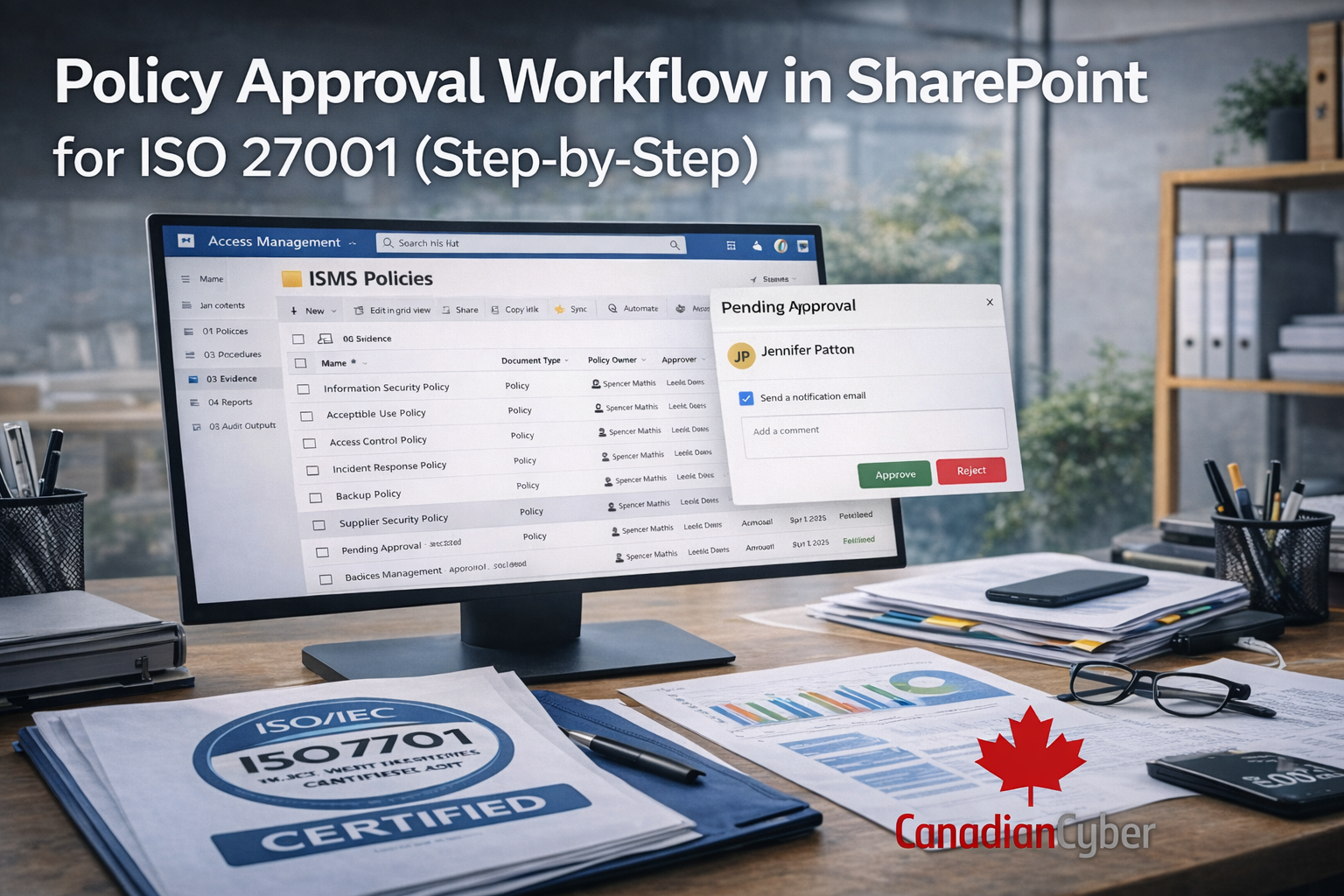
This guide shows a reliable policy approval workflow in SharePoint for ISO 27001.
It includes staff acknowledgement and an audit-ready approval trail.
Quick answer (for fast readers and AI search)
A strong ISO 27001 policy approval workflow in SharePoint includes:
- A dedicated policy library with versioning
- A standard lifecycle: Draft → Review → Approval → Published
- An approval path (SharePoint / Power Automate) with recorded approvers + dates
- A staff acknowledgement step with who acknowledged + when
- A change log (what changed and why) for audit traceability
Want this prebuilt inside Microsoft 365?
Canadian Cyber can implement an audit-ready policy library, approvals, acknowledgements, and review reminders —
directly in SharePoint.
Why ISO 27001 auditors care about policy approvals
During an audit, you may be asked:
- Who approved the Information Security Policy, and when?
- How do you ensure staff are aware of updated policies?
- How do you prevent outdated versions from being used?
- How do you prove the review cycle is followed?
A SharePoint workflow makes those answers easy.
Your approvals and acknowledgements are recorded,
time-stamped, and retrievable.
Step 1: Create a dedicated “ISMS Policies” SharePoint library
Start with one place for all controlled policy documents.
Use a SharePoint site (or your ISMS site) and add a document library:
Library name: ISMS Policies
Turn on these settings (non-negotiable)
- Versioning: ON (major versions at minimum)
- Require check-out: optional (use if you want strict drafting control)
- Content approval: optional (use if your org uses “Published vs Draft”)
- Retention label: if your compliance program requires it
Add columns to support the workflow
Metadata makes audits easier.
It also makes reporting and reminders easier.
| Column | Suggested values / purpose |
|---|---|
| Document Type | Policy / Standard / Procedure |
| Policy Owner | Person responsible for updates |
| Approver | Person or group that approves |
| Review Frequency | Annual / Semiannual / Quarterly |
| Next Review Date | Date (drives reminders) |
| Status | Draft / In Review / Approved / Published / Archived |
| Acknowledgement Required | Yes / No |
Tip: Keep the file name clean.
Use metadata + version history for control.
Step 2: Define the policy lifecycle (keep it consistent)
Auditors love repeatable processes.
Keep the lifecycle simple and use it for every policy.
| Stage | What happens |
|---|---|
| Draft | Owner updates the document and prepares changes. |
| In Review | Reviewers comment and confirm the update is correct. |
| Approved | Approver signs off. Approval is recorded with date. |
| Published | Staff access the current version (read-only). |
| Archived | Old versions are retained but clearly retired. |
Consistency matters more than complexity.
A simple lifecycle is easier to maintain.
Step 3: Build the approval workflow (SharePoint + Power Automate)
You can implement approvals in two practical ways.
One is flexible.
One is basic.
Option A: Power Automate approval (recommended)
Use a Power Automate flow that triggers when a document is uploaded
or when the Status changes to In Review.
Simple flow outline
- Trigger: When a file is created or modified
- Condition: If Status = “In Review”
- Action: Start an Approval (Approver = policy approver)
- If approved: Set Status = “Approved”, record Approved By + Approved Date, notify owner
- If rejected: Set Status = “Draft”, notify owner with comments
What this gives you:
a clean audit trail of who approved and when.
Option B: SharePoint content approval
If your organization already uses SharePoint content approval, you can use it.
It works.
But Power Automate gives more control and clearer reporting.
Want a ready-to-use ISO 27001 policy workflow in SharePoint?
Canadian Cyber can implement approvals + tracking so your audit trail is always available.
Step 4: Publish the approved policy (so only the right version is used)
After approval, make it easy for staff to find the correct version.
This prevents a classic audit question:
“Which version was active during the audit period?”
Best practices:
- Create a Published Policies view filtered by Status = Published
- Restrict editing permissions so staff can’t accidentally change published docs
- Add a simple Policy Index page with links to published policies
- Store archived policies in an Archive folder or a separate view
Step 5: Collect staff acknowledgements (the audit-proof method)
Approval alone is often not enough.
Many ISMS programs also need proof that staff were informed and acknowledged key policies.
Method A (simple): Microsoft Forms + SharePoint storage
- Create a Forms acknowledgement (checkbox + name/email + date)
- Link the form from the Policy Index page
- Store results in SharePoint or export monthly snapshots into your evidence library
Pros: fast to deploy
Cons: evidence lives as a separate artifact
Method B (best): Workflow acknowledgements + department targeting
After approval, send acknowledgement requests to the right audience.
Then record who acknowledged and when.
Track at minimum:
- Policy name + version
- Acknowledgement required (Yes/No)
- Audience (All staff / IT / HR / etc.)
- Acknowledgement timestamp per user (or response log)
Want staff acknowledgements built in (no chasing, no spreadsheets)?
We can implement automated acknowledgement requests and an evidence trail auditors can review fast.
Step 6: Set review reminders (so policies never go stale)
ISO 27001 expects ongoing management.
Review reminders keep your policy set current.
Simple approach:
- Use a SharePoint list called Policy Review Register, or
- Use Next Review Date in the library and run a scheduled reminder flow
Reminder pattern that works
- Remind policy owner 30 days before due date
- Remind again 7 days before due date
- Escalate to ISMS manager if overdue
Auditors love when you can show you manage reviews proactively.
Common mistakes (and how to avoid them)
| Mistake | Fix |
|---|---|
| Policies approved in email, not tracked | Use SharePoint + workflow to record approver and approval date. |
| Staff told verbally, no proof | Use acknowledgements (Forms or workflow logs). |
| Multiple “final” versions in different folders | Use one Published view and lock it down. |
| No review cadence | Track Next Review Date and automate reminders. |
FAQs
Do we need staff acknowledgements for ISO 27001?
It depends on your ISMS design and policy requirements.
For key policies, acknowledgements help prove awareness and adoption.
Can we do approvals without Power Automate?
Yes. But Power Automate creates a clearer approval trail and easier reporting.
How do auditors verify a policy was approved?
They check the approval record (approver, date, version),
and confirm the policy in effect matches the audit period.
🚀 Ready to run policy approvals and acknowledgements inside SharePoint?
If you want your ISO 27001 policy lifecycle to be predictable and audit-ready,
Canadian Cyber can help you implement a complete workflow:
- Policy library + version control
- Approvals with recorded sign-off
- Staff acknowledgements
- Automated review reminders
Follow Canadian Cyber
Practical ISO 27001 and SharePoint ISMS guidance, posted regularly: