

SharePoint ISMS • Executive Dashboard • Compliance Reporting • ISO 27001 • Audit Readiness
Template Blog: Building an Executive Compliance Dashboard in SharePoint
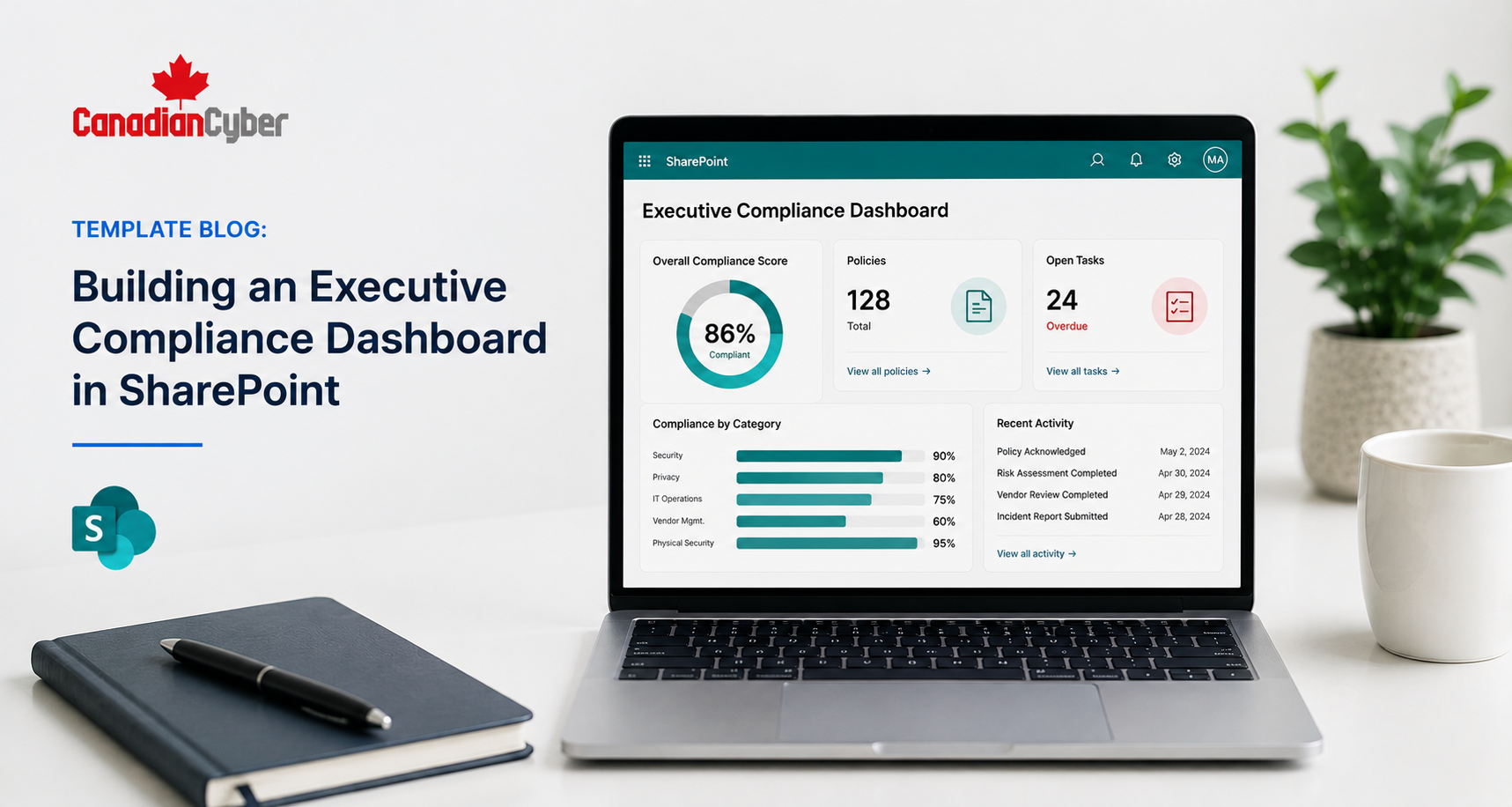
An executive compliance dashboard should not overwhelm leadership. It should show the few things executives need to govern the ISMS with confidence.
Quick Snapshot
| Dashboard Area | What Executives Need to See |
|---|---|
| Compliance Status | Are we on track, delayed, or at risk? |
| Open Risks | Which high risks need leadership attention? |
| Overdue Actions | Which tasks, reviews, findings, or evidence requests are late? |
| Audit Readiness | Is evidence complete, current, and easy to retrieve? |
| Decisions Needed | What needs approval, funding, risk acceptance, or executive direction? |
Introduction
Executives do not need to see every file in SharePoint.
They need a clear view of compliance health.
A good SharePoint executive dashboard helps answer simple questions:
- Are we audit-ready?
- What is overdue?
- Which risks need action?
- Are policies current?
- Are vendors reviewed?
- Are corrective actions closing?
- What decisions does leadership need to make?
With the right lists, metadata, views, and dashboard sections, SharePoint can give leadership a practical compliance summary for ISO 27001, SOC 2, cyber insurance, internal audits, and customer reviews.
What the Dashboard Should Show
Keep the dashboard short.
Executives should be able to understand the status in a few minutes. The dashboard should show what matters, not everything stored in the ISMS.
| Section | Purpose |
|---|---|
| Overall Compliance Status | Shows whether the program is green, amber, or red. |
| Top Risks | Highlights risks that need leadership attention. |
| Overdue Items | Shows late reviews, tasks, evidence, and actions. |
| Audit Readiness | Shows whether evidence is complete. |
| Decisions Needed | Shows what leadership must approve, fund, or accept. |
Simple rule: If the dashboard does not support a leadership decision, remove it.
Dashboard Section 1: Compliance Status
Start with a simple status box.
Executives should know the overall position right away.
| Area | Status | Comment |
|---|---|---|
| ISO 27001 Readiness | Amber | Evidence mostly complete, but vendor reviews need closure. |
| Internal Audit | Green | Q2 internal audit completed. |
| Policy Reviews | Amber | Three policies due this month. |
| Vendor Reviews | Red | Critical vendor reviews are behind schedule. |
| Status | Meaning |
|---|---|
| Green | On track. |
| Amber | Some gaps need attention. |
| Red | High risk, overdue, or blocked. |
| Grey | Not assessed this period. |
Dashboard Section 2: Top Risks
Leadership should not see every risk.
They should see the risks that need attention, funding, acceptance, or direction.
| Risk | Owner | Rating | Decision Needed |
|---|---|---|---|
| Critical vendor not reviewed. | Operations | High | Approve review priority. |
| Restore test not completed. | IT | High | Confirm test date. |
| Access exceptions remain open. | IT / Security | Medium | Accept or remove exceptions. |
Show high risks, overdue risks, accepted risks needing review, risks needing funding, and risks blocking audit readiness.
Dashboard Section 3: Overdue Actions
Overdue work is one of the most important dashboard views.
It shows where the ISMS is not moving.
| Action | Owner | Due Date | Source |
|---|---|---|---|
| Complete vendor review. | Operations Lead | May 15 | Internal audit |
| Approve updated policy. | CTO | May 20 | Policy review |
| Upload restore test evidence. | IT Lead | May 25 | Backup control |
Good sources for overdue items include policy reviews, risk treatments, vendor reviews, access reviews, corrective actions, management review actions, internal audit findings, and evidence requests.
Dashboard Section 4: Audit Readiness
Audit readiness should be visible before the audit starts.
Use SharePoint metadata to show which evidence is complete, missing, outdated, or under review.
| Control Area | Evidence Status | Owner | Gap |
|---|---|---|---|
| Access Control | Complete | IT Lead | None |
| Vendor Management | Incomplete | Operations | Two critical vendor reviews missing. |
| Incident Response | Complete | Security Lead | Tabletop completed. |
| Backup and Recovery | Incomplete | IT Lead | Restore evidence pending. |
Executives can see where audit readiness may fail before the auditor asks.
Dashboard Section 5: Policy Review Status
Policies need owners, approval dates, and review cycles.
A dashboard should show whether policy control is healthy.
| Policy | Owner | Status | Next Review Date |
|---|---|---|---|
| Information Security Policy | ISMS Owner | Approved | July 2026 |
| Access Control Policy | IT Lead | Due Soon | June 2026 |
| Supplier Security Policy | Operations | Overdue | May 2026 |
| Incident Response Plan | Security Lead | Approved | August 2026 |
Dashboard Section 6: Vendor Review Status
Vendor risk is a common audit and customer review issue.
Executives should see whether critical vendors are reviewed.
| Vendor | Criticality | Owner | Review Status |
|---|---|---|---|
| Cloud Provider | High | CTO | Complete |
| Payroll Platform | High | Operations | Overdue |
| Support Tool | Medium | Customer Ops | In Progress |
Do not show every low-risk vendor on the executive dashboard. Show vendors that affect risk, audit readiness, or customer trust.
Dashboard Section 7: Corrective Actions
Findings are only useful if they close.
The executive dashboard should show open and overdue corrective actions.
| Finding | Owner | Priority | Status |
|---|---|---|---|
| Guest access not reviewed. | IT Lead | High | Open |
| Vendor review incomplete. | Operations | High | Overdue |
| Policy approval missing. | ISMS Owner | Medium | In Progress |
Corrective actions should not disappear after the audit report. They should remain visible until verified and closed.
Dashboard Section 8: Decisions Needed
This is the section many dashboards miss.
Executives need to know what they must decide.
| Decision Needed | Why It Matters | Owner |
|---|---|---|
| Approve vendor review support. | Critical reviews are overdue. | COO |
| Accept temporary access exception. | Exception remains open after review. | CTO |
| Fund restore testing support. | Recovery evidence is incomplete. | CFO / IT Lead |
A good executive dashboard should not only show status. It should show decisions.
Turn SharePoint Data Into Leadership Reporting
Canadian Cyber helps turn ISMS lists, evidence libraries, risk registers, vendor trackers, and corrective action logs into executive-ready SharePoint dashboards.
Explore Our ISMS SharePoint Solution
Build My Executive Reporting View
How to Build This in SharePoint
You do not need to overbuild.
Start with a few SharePoint lists and libraries, then create views that surface the right information.
| Component | Purpose |
|---|---|
| Risk Register | Tracks risks, owners, ratings, and decisions. |
| Evidence Vault | Stores audit evidence with metadata. |
| Policy Library | Tracks policy status, owners, and review dates. |
| Vendor Register | Tracks vendor risk and review status. |
| ISMS Home Page | Displays dashboard views. |
Useful Metadata
- status
- owner
- due date
- priority
- control area
- evidence type
- next review date
- decision needed
- related risk or finding
Keep it simple. If the data is hard to update, the dashboard will become stale.
Common Mistakes to Avoid
- Mistake 1: Showing too much detail. Executives do not need every evidence item. Show status, risks, and decisions.
- Mistake 2: Building dashboards that are not updated. A stale dashboard damages trust. Assign an owner.
- Mistake 3: Using unclear status labels. Use simple labels like Green, Amber, Red, Complete, Overdue, and In Progress.
- Mistake 4: Hiding decisions. If leadership needs to act, make that visible.
- Mistake 5: Making the dashboard too technical. Use business language.
- Mistake 6: Not linking to evidence. The dashboard should summarize status and link to source records.
- Mistake 7: Overcomplicating SharePoint. A dashboard should make the ISMS easier to use, not harder.
What Good Looks Like
A strong executive compliance dashboard is:
- simple
- current
- risk-based
- decision-focused
- linked to evidence
- easy to scan
- owned by someone
- built inside the ISMS workflow
It should help leadership see what is on track, what is overdue, what needs attention, and what needs approval.
Canadian Cyber’s Take
At Canadian Cyber, we often see SharePoint ISMS sites with lots of documents but very little executive visibility.
That creates a problem.
Leadership cannot support the ISMS if they cannot see what is happening.
An executive compliance dashboard solves this by turning SharePoint data into a simple management view. The goal is not to show everything. The goal is to show the right things.
Risks. Overdue actions. Audit readiness. Policy status. Vendor reviews. Corrective actions. Decisions needed. That is what makes SharePoint useful for governance, not just storage.
Takeaway
An executive compliance dashboard in SharePoint should be short, clear, and useful.
It should help leadership understand compliance health without digging through folders.
Start with the basics:
- overall status
- top risks
- overdue actions
- audit readiness
- policy reviews
- vendor reviews
- corrective actions
- decisions needed
Keep the dashboard simple. Make sure it is updated. Link it to real evidence. That is how SharePoint becomes a practical ISMS reporting tool.
How Canadian Cyber Can Help
Canadian Cyber helps organizations build SharePoint ISMS dashboards that support executive reporting, audit readiness, and compliance governance.
- executive compliance dashboards
- SharePoint ISMS home pages
- evidence vault setup
- risk register dashboards
- policy review dashboards
- vendor review dashboards
- corrective action dashboards
- audit readiness views
- management review reporting
- Power Automate reminders
- ISO 27001 evidence mapping
- vCISO support for ISMS governance
Stay Connected With Canadian Cyber
Follow Canadian Cyber for practical guidance on SharePoint ISMS, ISO 27001, SOC 2, executive reporting, audit readiness, and vCISO support.