Why this is suddenly important
If your ISMS runs on Microsoft 365, Teams becomes your operating system.
- Approvals happen in chats.
- Decisions happen in meetings.
- Evidence lives in SharePoint.
- “Someone will sign later” becomes the bottleneck.
Audit reality
Auditors don’t accept “we tried to get approval.” They accept a defined process: who must approve, how long they have, what happens if they don’t respond, and where the decision is recorded.
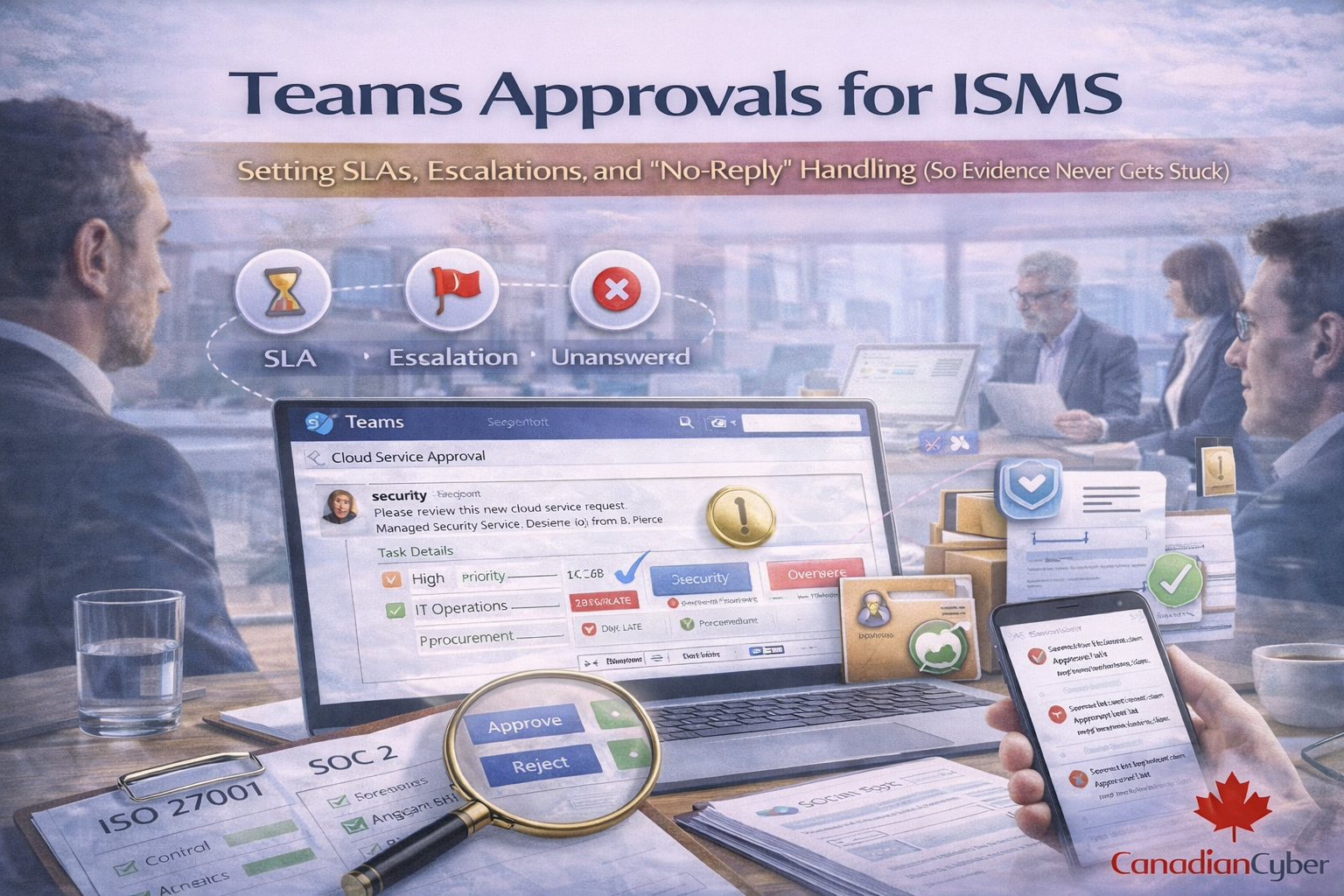
That’s why Teams Approvals is trending in ISMS automation. It turns chasing people into an auditable workflow.
What Teams Approvals is good for in an ISMS
Use it where you need traceable decisions with timestamps and accountability.
High-value ISMS approvals
- Policy approval (new or annual review)
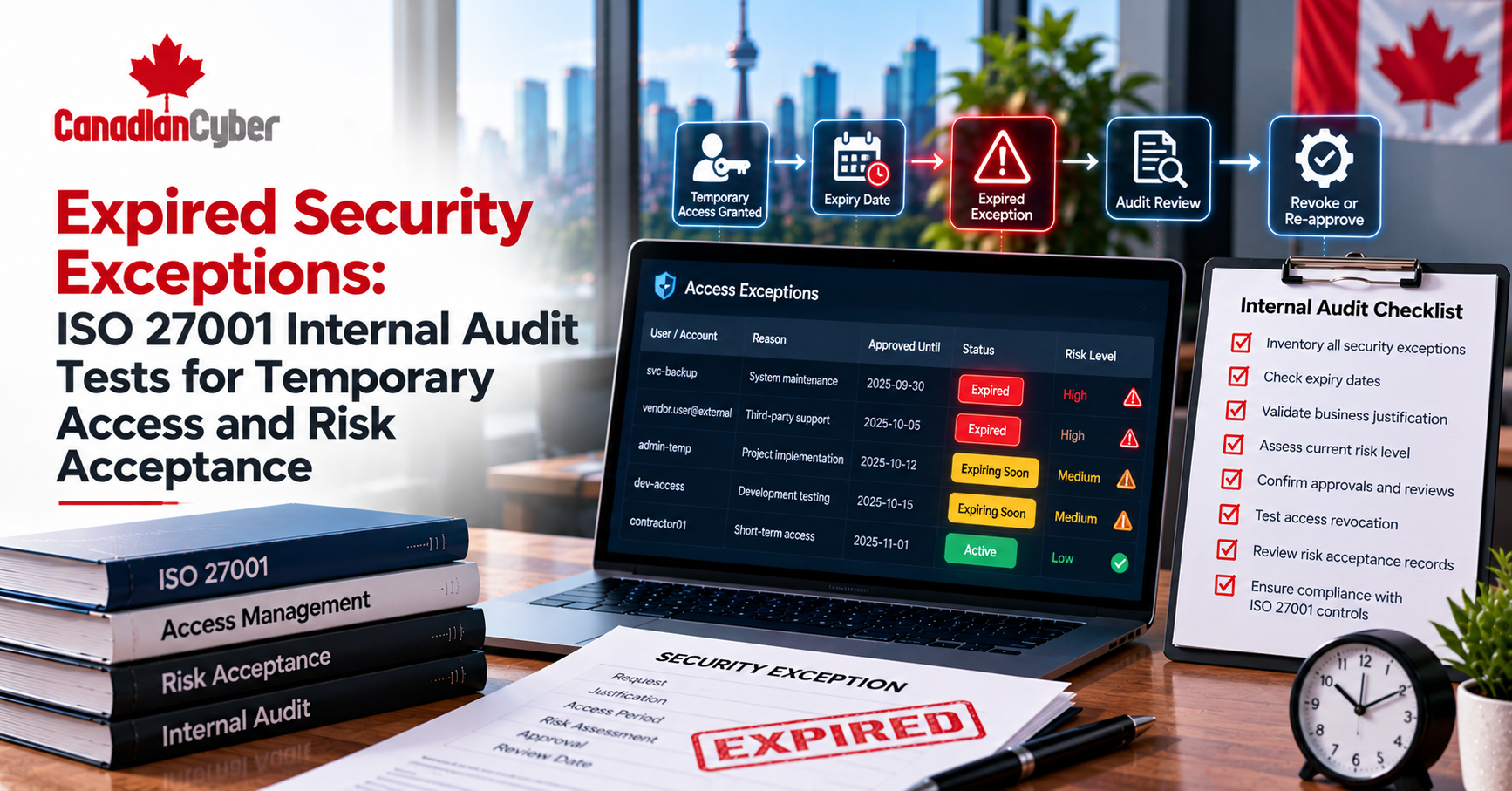
- Risk acceptance (with expiry date and rationale)
- Exception approvals (patch SLA exceptions)
- Supplier risk approval (go/no-go decision)
- Access approvals (high privilege, break-glass approvals)
- Evidence sign-off (monthly log review, quarterly access review)
- Corrective action closure approval (CAPA effectiveness verification)
Rule:
If the decision affects risk, compliance, or security posture, it needs a trackable approval.
The ISMS approval model that works (simple, auditor-friendly)
Step 1: Define approval types (don’t treat everything the same)
Create 3–5 types with consistent rules.
| Approval type |
Examples |
SLA |
Escalation |
No-reply rule |
| A) Routine operational |
Monthly log review sign-off; quarterly access review sign-off |
5 business days |
Manager after SLA |
Auto-reassign, not auto-approve |
| B) Risk acceptance / exception |
Overdue patch exception; control exception |
3 business days |
Exec sponsor after SLA |
No response = not approved |
| C) Policy / governance |
New policy approval; annual policy review |
7 business days |
Compliance lead + dept head |
Approval required; no silent approvals |
| D) Supplier / third-party |
Vendor approved with gaps; go/no-go decision |
5 business days |
Procurement owner + security owner |
Default: not approved until approved |
Why this works:
fewer categories and clearer rules remove ambiguity and speed up approvals overnight.
Step 2: Set SLAs that match reality (and audits)
SLA matters less than proving you follow it consistently.
Practical ISMS SLA defaults:
- Evidence sign-off: 5 business days
- Policy review: 7–10 business days
- Risk acceptance: 2–3 business days
- Access approvals: 1–2 business days (faster for privileged access)
- Incident-related approvals: same day when required
Auditor note:
they want consistency. A simple SLA used every time beats a perfect SLA you don’t follow.
Step 3: Build the escalation ladder (so nothing dies in Teams)
Escalation is a control effectiveness mechanism.
A good escalation model:
- Primary approver
- Backup approver (delegate)
- Functional manager (escalation 1)
- Executive sponsor (escalation 2)
- Risk committee / management review (repeat breaches)
Best practice:
don’t escalate to a group chat. Escalate to a person with authority to decide.
The no-reply problem: what auditors expect you to do
No reply is not neutral in an ISMS. It is either a broken control (no decision recorded) or a governance process (decision moved to higher authority).
Auditors will ask
- What happens if an approver does not respond?
- Do approvals expire?
- Do you have a default action for high-risk items?
The only defensible no-reply rules
Rule 1: No silent approvals for risk
For risk acceptance, exceptions, and supplier approvals:
No response = not approved.
Reassign, escalate, or defer with a recorded reason.
Rule 2: Routine items can be auto-reassigned
For evidence sign-offs and low-risk operational approvals:
No response triggers reassignment to a backup approver, then escalation to a manager.
You still need a human sign-off.
Rule 3: Approvals must have expiry
Risk acceptance should include an expiry date, conditions, and a linked remediation plan (when applicable).
Auditors dislike indefinite acceptances.
What no-reply handling looks like (example workflow)
Scenario: Quarterly access review sign-off
- Day 0: approval sent to system owner
- Day 3: reminder sent automatically
- Day 5: SLA breached → auto-escalate to backup owner
- Day 7: still no response → escalate to manager + ISMS owner
- Day 10: mark as nonconformity candidate → log as ISMS action item
Evidence produced:
request record, reminders, reassignment, final decision, and tracking entry for repeat issues.
How to run Teams Approvals with SharePoint evidence (best practice)
Teams Approvals works best when it creates an audit trail that links to evidence stored in SharePoint.
- Evidence file lives in SharePoint (log review, access review, vendor assessment)
- Approval request includes the SharePoint evidence link
- Approver approves/rejects with comment
- Decision is captured and linked back to the control register
- Evidence item is tagged “Approved” with approval date
This turns approvals into operating effectiveness proof.
What to include in every ISMS approval request (copy/paste)
Approval request template
Title: [Control ID] – [Approval type] – [Period]
Request: Approve / Reject
Reason: (why this matters)
Evidence link: (SharePoint link)
Decision needed by: (SLA date)
Risk level: Low / Medium / High
If no response: (escalation rule)
Example:
A.5.15 Log Review – Approval – Feb 2026
Please approve the February log review evidence.
Evidence: [link]
Decision needed by: March 7, 2026
If no response: auto-escalate to backup owner, then manager.
Audit evidence: what auditors will ask you to show
Auditors often sample approvals. Be ready to provide:
- Approval procedure (SLA + escalation rules)
- A sample of approval records (3–5)
- Evidence links showing what was approved
- Proof of escalation when SLA is breached
- Proof that high-risk approvals were never silent
Your best proof is consistency: same template, same rules, same audit trail every time.
Common mistakes that break audits
- Approvals happen in chat and are not recorded
- No SLA defined (“whenever you can”)
- No escalation (requests expire silently)
- Risk acceptances have no expiry date
- Evidence approvals have no evidence link
- Approvals cannot be tied back to controls
Set up audit-ready Teams Approvals (as a working system)
If your ISMS is in Microsoft 365 and you want approvals that don’t stall, Canadian Cyber can set this up as a working system not a theory.
Our ISMS SharePoint solution + Teams workflow includes:
- approval types + SLA standards
- escalation ladder setup
- no-reply handling rules
- SharePoint evidence linking
- dashboards for overdue approvals
- audit-ready exports and traceability
A realistic SLA + escalation policy (starter)
Here’s a simple baseline you can adopt immediately. Document it and use it consistently.
Starter policy
Routine evidence sign-off: 5 business days
- Reminders at Day 3 and Day 5
- Escalate to backup owner at Day 5
- Escalate to manager at Day 7
Risk acceptance / exceptions: 3 business days
- Reminder at Day 2
- Escalate to executive sponsor at Day 3
- No response = not approved
Policy approval: 7 business days
- Reminder at Day 5
- Escalate to department head at Day 7
- No response = not approved
Document it. Use it consistently. That’s 80% of audit success.
Follow Canadian Cyber
Practical cybersecurity + compliance guidance for Canadian teams: