

ISMS SharePoint • SharePoint Automation • Remote SaaS Teams • Compliance Meetings • Audit Readiness
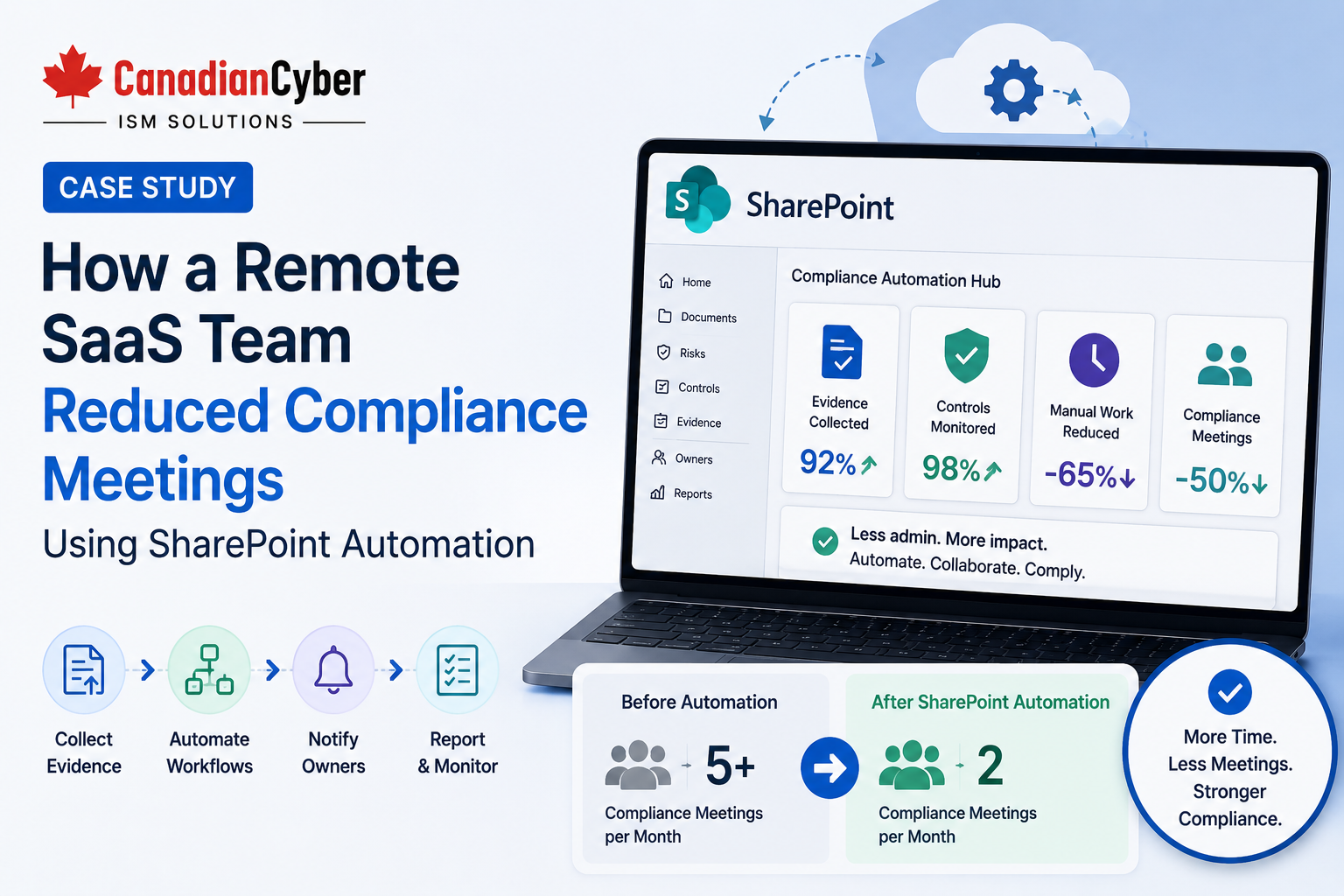
Case Study: How a Remote SaaS Team Reduced Compliance Meetings Using SharePoint Automation
Remote SaaS teams often lose time in recurring compliance meetings. SharePoint automation helps move evidence updates, access review reminders, vendor follow-ups, approvals, and corrective actions into a structured workflow that owners can manage asynchronously.
Canadian Cyber ISMS SharePoint Solution
Reduce Compliance Meetings With Better Visibility, Automation, and Ownership
Canadian Cyber helps remote SaaS teams build ISMS SharePoint workspaces with evidence workflows, owner-based views, automated reminders, policy approvals, access review trackers, vendor registers, corrective action trackers, and management dashboards.
Quick Snapshot
| Case Study Area | What Improved |
|---|---|
| Business Context | Remote SaaS team preparing for SOC 2 and ISO 27001 readiness. |
| Main Challenge | Too many compliance status meetings and scattered follow-ups. |
| Root Cause | Evidence owners, due dates, approvals, and action status were not visible in one place. |
| SharePoint Solution | Automated reminders, owner-based views, evidence status tracking, approval workflows, and dashboards. |
| Business Outcome | Fewer meetings, faster evidence updates, clearer accountability, and better audit readiness. |
Introduction
Remote SaaS teams depend on async work. People may be spread across different cities, time zones, departments, and schedules. That makes compliance coordination harder when evidence, owners, approvals, and due dates are not visible.
A growing SaaS company may need to manage:
ISO 27001 readiness
risk reviews
access reviews
vendor reviews
policy approvals
incident records
change evidence
backup reports
corrective actions
client security questionnaires
management review updates
At first, many teams try to manage everything through meetings. Weekly evidence meetings, access review follow-ups, vendor review calls, audit readiness meetings, policy approval meetings, corrective action meetings, and management updates become the default operating model.
The result is predictable: too many meetings and not enough progress.
This case study explains how a remote SaaS team used Canadian Cyber’s ISMS SharePoint solution to reduce compliance meetings and make compliance work more asynchronous, visible, and trackable.
Too Many Compliance Status Meetings?
Canadian Cyber helps remote SaaS teams move evidence updates, owner reminders, approvals, vendor follow-ups, and corrective action tracking into structured SharePoint workflows.
Meet the Remote SaaS Team
Let’s call the company NorthBridge Cloud.
NorthBridge Cloud was a fast-growing SaaS company with a fully remote team. The company supported workflow automation for business clients and was preparing for SOC 2 readiness while also building toward ISO 27001.
The team included founders, engineering, product, support, operations, HR, customer success, finance, and external vCISO support.
| Compliance Area | Owner |
|---|---|
| Access Reviews | Operations and Engineering |
| Vendor Reviews | Operations |
| Change Evidence | Engineering |
| Policy Reviews | Operations and Leadership |
| Security Training | HR |
| Incident Response | CTO and Support |
| Backup Evidence | Engineering |
| Management Review | Leadership and vCISO |
Remote teams need compliance visibility without relying on constant meetings.
The Starting Problem: Meetings Replaced Structure
NorthBridge Cloud did not have a broken compliance program. It had a coordination problem.
The company was using spreadsheets for control tracking, email for evidence requests, Teams messages for reminders, shared folders for files, meeting notes for action items, calendar invites for follow-ups, and manual status updates for leadership.
| Meeting Trigger | Why It Happened |
|---|---|
| Evidence status was unclear | No one knew what was ready. |
| Owners missed due dates | Reminders were manual. |
| Policies needed approval | Approval workflow was informal. |
| Vendor reviews were delayed | Review status was not visible. |
| Access reviews needed chasing | Owners forgot sign-offs. |
| Corrective actions lacked status | Updates lived in meeting notes. |
| Leadership needed reporting | Dashboards did not exist. |
The Main Goal: Reduce Low-Value Status Meetings
The goal was not to remove all compliance meetings. Leadership reviews, risk decisions, incident tabletop exercises, audit planning, and major remediation workshops were still valuable.
The goal was to reduce meetings that only existed to ask basic status questions:
- Where is the evidence?
- Who owns this task?
- Is the policy approved?
- Which vendor review is overdue?
- Which access review still needs sign-off?
- Which corrective actions are blocked?
- What should leadership review this week?
Meetings should be used for decisions, not basic status collection.
Step 1: Centralizing Compliance Work in SharePoint
Canadian Cyber helped NorthBridge Cloud set up an ISMS SharePoint workspace. The workspace became the central place for compliance tasks, evidence, owners, dashboards, and approvals.
| SharePoint Workspace Section | Purpose |
|---|---|
| Control Register | Tracks SOC 2 and ISO 27001 controls. |
| Evidence Library | Stores approved audit evidence. |
| Ownership Register | Assigns owners and due dates. |
| Access Review Library | Stores access review records. |
| Vendor Register | Tracks supplier reviews. |
| Policy Library | Stores policies, versions, and approval status. |
| Corrective Action Tracker | Tracks findings and remediation. |
| Management Review Dashboard | Shows leadership status. |
| Audit Request Tracker | Tracks auditor and customer requests. |
Step 2: Assigning Owners to Every Compliance Item
The team moved from general responsibility to named ownership. Instead of asking “Who owns this?” in meetings, the answer was visible in SharePoint.
| Ownership Field | Purpose |
|---|---|
| Item Type | Control, evidence, policy, vendor, or action. |
| Primary Owner | Accountable person. |
| Supporting Owner | Backup or contributor. |
| Department | Engineering, operations, HR, support, product, or leadership. |
| Due Date | Deadline. |
| Review Frequency | Monthly, quarterly, annual, or event-based. |
| Evidence Link | Supporting file or record. |
Give Every Evidence Item an Owner, Status, and Due Date
Canadian Cyber helps SaaS teams create ownership registers, due date views, evidence workflows, approval statuses, and dashboard views in SharePoint.
Step 3: Using Automated Reminders
Manual reminders were one of the biggest sources of wasted time. The team used SharePoint alerts and task-style views to remind owners when action was needed.
| Reminder Type | Trigger |
|---|---|
| Evidence Due Soon | Evidence due in 7 days. |
| Evidence Overdue | Due date has passed. |
| Policy Review Due | Next review date approaching. |
| Vendor Review Due | Supplier review date approaching. |
| Access Review Due | Quarterly access review approaching. |
| Approval Needed | Evidence or policy awaiting review. |
Step 4: Creating Owner-Based Views
Remote teams need personalized visibility. Each owner should have a simple view of what they need to do next.
| Owner View | Purpose |
|---|---|
| My Evidence Due | Shows evidence assigned to the user. |
| My Overdue Items | Shows missed deadlines. |
| My Pending Approvals | Shows items needing approval. |
| My Corrective Actions | Shows open remediation tasks. |
| My Vendor Reviews | Shows suppliers assigned to the owner. |
| My Policy Reviews | Shows policy review responsibilities. |
Step 5: Automating Evidence Status Tracking
Before SharePoint automation, evidence status was discussed manually. After the workflow was introduced, evidence moved through clear statuses.
| Evidence Status | Meaning |
|---|---|
| Not Started | Evidence not yet uploaded. |
| Draft | Evidence uploaded but not reviewed. |
| Under Review | Control owner is reviewing. |
| Approved | Ready for audit. |
| Submitted | Shared with auditor or customer. |
| Expired | Evidence needs refresh. |
| Archived | Retained for history. |
Step 6: Using Dashboards for Leadership Updates
Leadership still needed visibility. But leadership did not need long weekly status calls. The management review dashboard showed key indicators and helped leaders focus on exceptions and decisions.
| Dashboard View | What It Showed |
|---|---|
| Evidence Readiness | Approved, missing, overdue, and expired evidence. |
| Control Owner Status | Tasks by owner. |
| Open Corrective Actions | Findings and remediation progress. |
| Access Review Status | Completed and overdue access reviews. |
| Vendor Review Status | Supplier review progress. |
| Policy Review Status | Upcoming and overdue reviews. |
| Audit Request Status | Open, submitted, and closed requests. |
Dashboards should reduce status reporting, not create more reporting work.
Give Leadership a Dashboard Instead of Another Status Call
Canadian Cyber helps remote SaaS teams build management dashboards for evidence readiness, overdue tasks, access reviews, vendor reviews, policies, audit requests, and corrective actions.
Step 7: Automating Policy Review and Approval
Policy reviews were previously managed by email. This created delays. The SharePoint policy library added metadata, version control, approval status, and review dates.
| Policy Library Field | Purpose |
|---|---|
| Policy Name | Document title. |
| Policy Owner | Accountable person. |
| Version | Current version. |
| Approval Status | Draft, under review, approved, or retired. |
| Next Review Date | Upcoming review. |
| Related Framework | SOC 2, ISO 27001, or client requirement. |
Step 8: Streamlining Access Reviews
Access reviews often create multiple follow-up meetings. NorthBridge Cloud used SharePoint to track review status by system, owner, period, exceptions, remediation, and evidence link.
| Access Review Field | Purpose |
|---|---|
| System Name | Application or platform. |
| Review Period | Month or quarter. |
| Access Owner | Person responsible. |
| Review Status | Not started, in progress, or complete. |
| Exceptions Found | Yes or no. |
| Remediation Owner | Person responsible for fixing access issues. |
| Evidence Link | Export or sign-off record. |
Step 9: Creating a Vendor Review Queue
Vendor reviews were another meeting-heavy area. The team created a vendor register with review dates, risk ratings, statuses, assurance evidence, and open issues.
| Vendor Review Field | Purpose |
|---|---|
| Vendor Name | Supplier. |
| Vendor Owner | Internal owner. |
| Criticality | High, medium, or low. |
| Data Processed | Customer, employee, operational, or financial data. |
| Assurance Evidence | SOC 2, ISO 27001, or questionnaire. |
| Next Review Date | Next review. |
| Open Issues | Follow-up items. |
Step 10: Tracking Corrective Actions Until Closure
Corrective actions were previously discussed in meetings but not always tracked to closure. The team created a SharePoint corrective action tracker with owners, due dates, status, closure evidence, and verification.
| Corrective Action Field | Purpose |
|---|---|
| Action ID | Unique reference. |
| Source | Audit, risk review, client review, or incident. |
| Issue Description | What needs fixing. |
| Related Control | Control affected. |
| Owner | Responsible person. |
| Closure Evidence | Proof completed. |
| Verification Owner | Person confirming closure. |
Before and After: Meeting Reduction Results
| Before | After |
|---|---|
| Weekly evidence status calls | Evidence dashboard reviewed asynchronously. |
| Manual reminders | Automated due date alerts. |
| Unclear ownership | Owner-based views. |
| Policy approval by email | Policy approval status in SharePoint. |
| Vendor follow-up meetings | Vendor review queue. |
| Access review chasing | Access review tracker. |
| Corrective actions in notes | Corrective action tracker. |
| Leadership status calls | Management dashboard review. |
What Meetings Remained Useful?
The goal was not to eliminate all meetings. The team kept meetings that required decisions, judgment, collaboration, or leadership alignment.
| Meetings Worth Keeping | Meetings Reduced or Replaced |
|---|---|
| Management review | Evidence status updates |
| Risk treatment decisions | Owner reminder calls |
| Incident tabletop exercises | Approval chase meetings |
| Audit kickoff | Basic vendor status calls |
| Client security strategy | Corrective action check-ins |
| Control design workshops | Manual audit request tracking calls |
Checklist: Can SharePoint Automation Reduce Your Compliance Meetings?
| Question | Yes / No |
|---|---|
| Do evidence owners have clear due dates? | |
| Are reminders automated? | |
| Can owners see their own tasks? | |
| Is evidence status visible? | |
| Are approvals tracked? | |
| Are overdue items visible? | |
| Are vendor reviews tracked by date? | |
| Are access reviews tracked by system and owner? | |
| Are corrective actions tracked to closure? | |
| Can leadership see dashboard summaries? |
If most answers are “no,” your team may be using meetings to compensate for missing structure.
Common Mistakes to Avoid
- Automating before defining ownership. Automation only works when owners and due dates are clear.
- Using SharePoint as a folder only. Automation needs metadata, lists, views, and statuses.
- Sending too many alerts. Alerts should be useful, not noisy.
- No dashboard for exceptions. Leadership should see overdue, high-risk, and blocked items first.
- No evidence approval workflow. Uploaded evidence should be reviewed before it becomes auditor-ready.
- Keeping status in meeting notes. Status should live in the system of record.
What Good Looks Like
A strong SharePoint automation setup for remote compliance teams can show:
- control owners
- evidence owners
- due dates
- automated reminders
- owner-based views
- evidence status workflow
- policy approval workflow
- vendor review queue
- access review tracker
- corrective action tracker
- audit request tracker
- management dashboard
- auditor-ready evidence view
- client-ready evidence view
This allows remote teams to work asynchronously while staying audit-ready.
Canadian Cyber’s Take
Remote SaaS teams do not need more compliance meetings. They need better compliance visibility.
Many meetings happen because teams cannot quickly answer:
- Who owns this?
- When is it due?
- Is it approved?
- What is overdue?
- What evidence is missing?
- Which vendor needs review?
- Which action is blocked?
- What needs management attention?
Canadian Cyber’s ISMS SharePoint solution helps answer these questions in one structured workspace.
When ownership, due dates, evidence, and dashboards are visible, teams can reduce status meetings and use meeting time for decisions.
Takeaway
A remote SaaS team can reduce compliance meetings by using SharePoint automation to track evidence status, owners, due dates, approvals, access reviews, vendor reviews, policy reviews, corrective actions, audit requests, and management dashboards.
The goal is not to remove human judgment. The goal is to stop using meetings for information that SharePoint can show automatically.
How Canadian Cyber Can Help
Canadian Cyber helps remote SaaS teams build ISMS SharePoint workspaces that reduce manual compliance coordination and improve audit readiness.
- ISMS SharePoint solution setup
- SharePoint automation design
- evidence workflow setup
- owner-based compliance views
- audit evidence libraries
- SOC 2 evidence tracking
- ISO 27001 evidence tracking
- policy approval workflows
- access review trackers
- vendor review registers
- corrective action trackers
- audit request trackers
- management dashboards
- client-ready evidence packs
- vCISO support for remote SaaS teams
Stay Connected With Canadian Cyber
Follow Canadian Cyber for practical guidance on ISMS SharePoint, SharePoint automation, remote SaaS compliance, SOC 2, ISO 27001, audit evidence, management dashboards, and vCISO support.