

SharePoint ISMS • MSP Compliance • Permission Groups • Client Evidence • GRC Workspaces
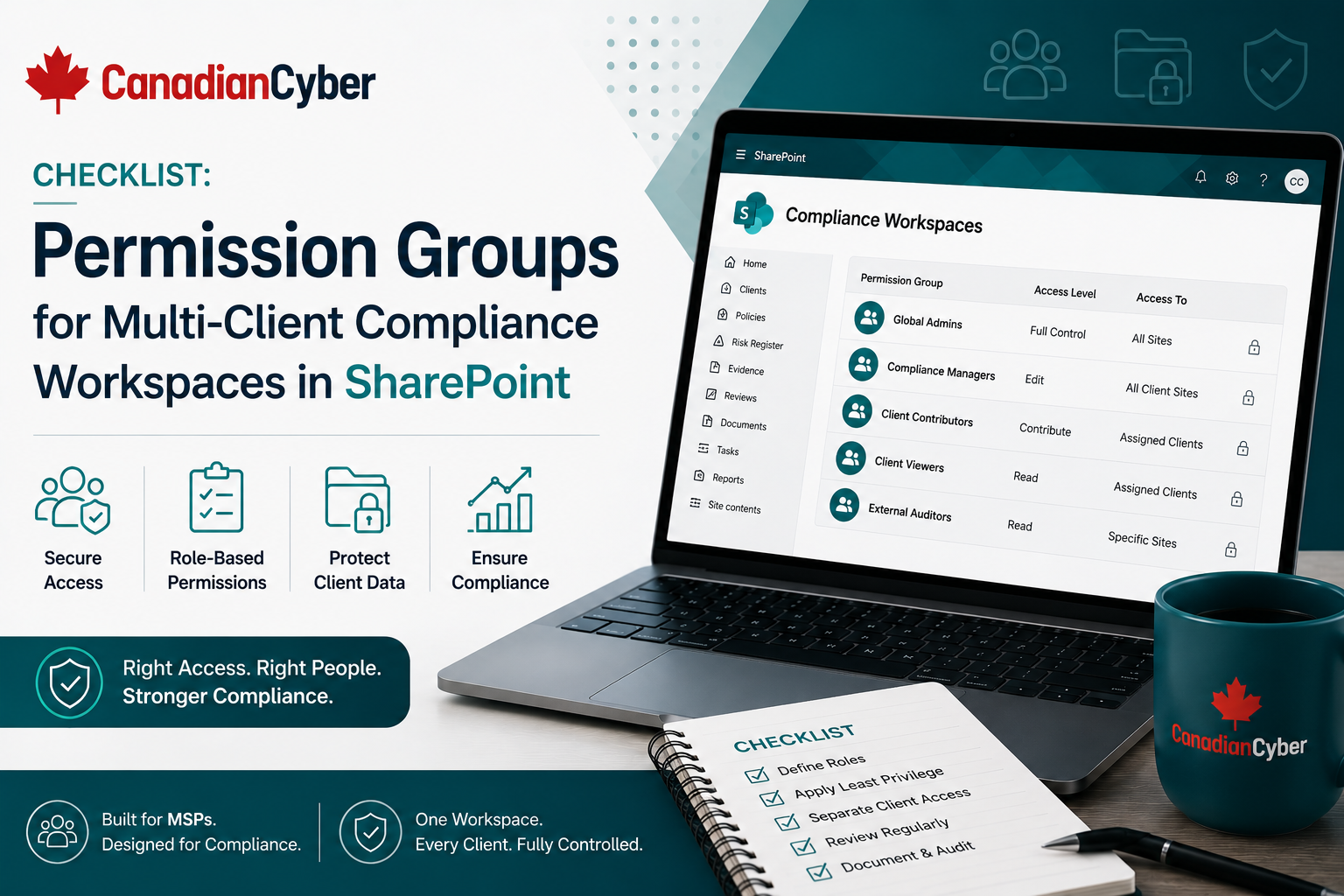
Checklist: Permission Groups for Multi-Client Compliance Workspaces in SharePoint
MSPs using SharePoint for client compliance workspaces need more than folders and document libraries. They need clear permission groups, client separation, evidence sensitivity rules, auditor access controls, and owner accountability.
Quick Snapshot
| Permission Area | Why It Matters |
|---|---|
| Client Separation | Prevents one client from seeing another client’s policies, risks, evidence, or reports. |
| MSP Internal Roles | Separates helpdesk, vCISO, compliance, admin, and management access. |
| Evidence Sensitivity | Protects audit evidence, contracts, access reviews, vendor reports, and incident records. |
| Auditor Access | Gives external reviewers only what they need, for a defined period. |
| Review Cadence | Ensures permissions remain accurate as staff, clients, and projects change. |
| Business Outcome | A safer, cleaner, more scalable SharePoint compliance workspace for MSP advisory services. |
Introduction
MSPs are increasingly using SharePoint to manage client compliance work.
That makes sense. Many MSPs already use Microsoft 365, clients are familiar with SharePoint, evidence can be organized by client, policies can be version-controlled, risks can be tracked in lists, and ISO 27001 or SOC 2 readiness can be managed without buying a heavy GRC platform too early.
But there is one area MSPs must get right from the start: permissions.
A multi-client compliance workspace is sensitive. If permissions are wrong, the MSP may expose client evidence, executive reports, vendor documents, incident details, or audit findings.
This checklist explains how MSPs should think about permission groups for multi-client compliance workspaces in SharePoint.
Need a Secure SharePoint ISMS for MSP Clients?
Canadian Cyber helps MSPs design SharePoint ISMS workspaces with client separation, permission groups, evidence libraries, risk registers, policy libraries, audit trackers, and vCISO reporting structures.
Why Permissions Matter in MSP Compliance Workspaces
A normal SharePoint site may hold internal documents. An MSP compliance workspace may hold evidence for many clients. That changes the risk.
| Permission Mistake | Risk |
|---|---|
| All clients added to one shared site. | Cross-client data exposure. |
| MSP technicians have access to all evidence. | Unnecessary internal access. |
| Auditor access is not time-limited. | External users keep access too long. |
| Client users can edit evidence. | Audit integrity is weakened. |
| Sensitive incident records are too open. | Confidential details are exposed. |
| Permission inheritance is confusing. | Admins lose track of who can see what. |
| Old client users are not removed. | Former contacts retain access. |
| No permission review. | Access slowly becomes inaccurate. |
Practical rule: A SharePoint compliance workspace should follow least privilege. People should only access what they need for their role.
Recommended Permission Model for MSPs
MSPs should start with a simple permission model. Avoid making it too complex at the beginning.
| Core Permission Layer | Purpose |
|---|---|
| MSP Admin Layer | Manages the SharePoint structure and permissions. |
| MSP Advisory Layer | vCISO, compliance, and governance team access. |
| MSP Technical Layer | Limited access to technical evidence areas. |
| Client Owner Layer | Client leadership or security owners. |
| Client Contributor Layer | Client staff who upload or update evidence. |
| Client Viewer Layer | Client staff who only view reports or documents. |
| External Auditor Layer | Temporary access for audit or review. |
| Restricted Evidence Layer | Highly sensitive files with special access. |
Practical rule: Use groups, not individual permissions, wherever possible.
Permission Group Naming Convention
Good group names make permissions easier to manage. Use names that include the client, workspace, role, and access level.
Example naming format:
ClientName-Workspace-Role-AccessLevel
| Group Name | Purpose |
|---|---|
| ClientA-ISMS-Owners-FullControl | Client owners with high-level control. |
| ClientA-ISMS-Contributors-Edit | Client users who upload or update evidence. |
| ClientA-ISMS-Viewers-Read | Client users who view reports and approved files. |
| ClientA-ISMS-Auditors-Read | Temporary auditor access. |
| ClientA-ISMS-RestrictedEvidence-Read | Sensitive evidence access. |
| MSP-ISMS-Admins-FullControl | MSP SharePoint administrators. |
| MSP-ISMS-vCISO-Edit | vCISO and advisory delivery team. |
| MSP-ISMS-Helpdesk-Limited | Limited technical support access. |
Design Permission Groups Before the Portal Goes Live
Canadian Cyber helps MSPs create permission group templates, client workspace boundaries, restricted evidence libraries, auditor workflows, and quarterly access review evidence.
Core Permission Groups to Create
1. MSP SharePoint Administrators
Example: MSP-ISMS-Admins-FullControl
Small group with full control. Manages structure, libraries, permissions, templates, inactive users, and access audits.
2. MSP vCISO / Advisory Team
Example: MSP-ISMS-vCISO-Edit
Edit access to assigned client workspaces for risk registers, reports, evidence reviews, roadmaps, and corrective actions.
3. MSP Compliance Team
Example: MSP-ISMS-Compliance-Edit
Supports evidence trackers, framework mapping, control status, internal audit requests, and questionnaire libraries.
4. MSP Technical Support
Example: MSP-ISMS-Helpdesk-Limited
Limited access to technical evidence areas such as backup proof, endpoint evidence, cloud evidence, and restore test records.
5. Client Workspace Owners
Example: ClientA-ISMS-Owners-FullControl
Client-specific elevated access for client sponsors, security owners, IT managers, or compliance owners.
6. Client Contributors
Example: ClientA-ISMS-Contributors-Edit
Client users who upload evidence, update assigned actions, add vendor documents, and respond to evidence requests.
7. Client Viewers
Example: ClientA-ISMS-Viewers-Read
Read-only access for executives, board members, department heads, finance leaders, and other approved stakeholders.
8. External Auditors
Example: ClientA-ISMS-Auditors-Read
Read-only, client-specific, time-limited access to defined evidence areas only.
9. Restricted Evidence Access
Example: ClientA-ISMS-RestrictedEvidence-Read
Special group for sensitive files such as incident records, legal correspondence, penetration test reports, and executive risk acceptance notes.
Practical rule: Technical staff should access the evidence they need, not every governance record.
Auditor Access Checklist
Auditor access should be controlled, read-only, client-specific, and temporary.
| Question | Yes / No |
|---|---|
| Is the auditor assigned to the correct client only? | |
| Is access read-only? | |
| Is access limited to required evidence? | |
| Is access time-bound? | |
| Is restricted evidence excluded unless approved? | |
| Is access removal scheduled? | |
| Is the access decision documented? |
Practical rule: External access should always have an expiry plan.
Restricted Evidence Access
Some evidence should not be broadly available, even within a compliance workspace.
Restricted evidence examples include:
Legal correspondence
Cyber insurance claims
Contracts and DPAs
Vendor security reports
Penetration test reports
Vulnerability scan details
Privileged access exports
Executive risk acceptance notes
| Recommended Control | Why It Helps |
|---|---|
| Separate restricted library. | Prevents broad evidence access from exposing sensitive files. |
| Limited group membership. | Keeps sensitive evidence available only to approved users. |
| Read-only where possible. | Reduces accidental edits or evidence integrity issues. |
| Approval before sharing. | Protects high-risk records before external review. |
| Sensitivity labels. | Adds another layer of classification and control. |
| Quarterly access review. | Keeps membership current. |
Protect Restricted Evidence in SharePoint
Canadian Cyber helps MSPs design restricted evidence libraries for incident files, legal documents, contracts, privileged access exports, penetration test reports, and executive risk records.
Site Structure Options
MSPs can structure SharePoint in different ways. The right model depends on client count, sensitivity, and delivery style.
| Structure Option | Best For | Watchout |
|---|---|---|
| Separate Site Per Client | Higher sensitivity, external auditor access, larger clients, compliance-heavy clients. | More setup effort and template management. |
| Hub Site With Client Sites | MSPs managing many clients with repeatable templates. | Permissions must be managed carefully. |
| Single Site With Client Libraries | Small pilot programs with limited external access. | Higher cross-client permission risk and less scalability. |
Practical rule: For multi-client compliance workspaces, separate client sites are usually safer than one shared site.
Permission Checklist for Multi-Client Workspaces
Client Separation
| Question | Yes / No |
|---|---|
| Does each client have a separate workspace or clearly separated permission boundary? | |
| Can Client A users be prevented from seeing Client B data? | |
| Are external sharing settings controlled by client workspace? | |
| Are client dashboards separated? | |
| Are client reports stored only in the correct client area? |
MSP Internal Access
| Question | Yes / No |
|---|---|
| Are MSP admins limited to a small group? | |
| Are vCISO users assigned only to relevant clients? | |
| Are technicians given limited evidence access? | |
| Are compliance users assigned by project or client? | |
| Are internal permissions reviewed regularly? |
Client Access
| Question | Yes / No |
|---|---|
| Are client owners identified? | |
| Are contributors separated from viewers? | |
| Are former client contacts removed? | |
| Are policy owners assigned correctly? | |
| Are client users prevented from changing permissions unless approved? |
Auditor Access
| Question | Yes / No |
|---|---|
| Is auditor access read-only? | |
| Is auditor access time-limited? | |
| Is auditor access client-specific? | |
| Is restricted evidence shared only when approved? | |
| Is auditor access removed after review? |
Evidence Library Permission Checklist
Different evidence areas may need different access.
| Library | Access Guidance |
|---|---|
| General Evidence | Client contributors, MSP compliance, vCISO. |
| Approved Evidence | Client viewers and auditors may read. |
| Restricted Evidence | Limited users only. |
| Draft Evidence | MSP and assigned contributors only. |
| Policy Library | Contributors edit, viewers read approved policies. |
| Risk Register | Client owners and vCISO edit, viewers read summaries. |
| Corrective Actions | Owners edit assigned actions. |
| Audit Evidence | Auditors read approved evidence only. |
| Executive Reports | Client owners and selected viewers. |
Practical rule: Separate draft, approved, and restricted evidence when possible.
Quarterly Permission Review Checklist
Permissions should not be set once and forgotten. Review them quarterly.
| Review Question | Yes / No |
|---|---|
| Are all users still active and authorized? | |
| Have former MSP staff been removed? | |
| Have former client contacts been removed? | |
| Are auditors removed after review? | |
| Are vCISO users still assigned to the right clients? | |
| Are technical users still limited to required areas? | |
| Are restricted evidence groups still accurate? | |
| Are guest users reviewed? | |
| Are group owners documented? | |
| Are permission changes logged? |
Evidence to keep:
- permission review export
- review sign-off
- removed user list
- exception register
- guest access review
- admin access review
- corrective actions
Practical rule: A permission review should produce evidence.
Create Quarterly Permission Review Evidence
Canadian Cyber helps MSPs build access review templates, guest access reviews, admin access reviews, exception registers, and permission review evidence for SharePoint ISMS workspaces.
Common Mistakes to Avoid
- Using one group for everyone. Owners, contributors, viewers, auditors, and technicians need different access.
- Giving MSP technicians full access. Technical users often need limited evidence access, not full governance access.
- Letting permission inheritance run wild. Inheritance can cause users to see more than intended.
- No external access expiry. Auditor and reviewer access should be temporary.
- Mixing client evidence. Never rely on folder names alone for client separation.
- No restricted evidence area. Sensitive reports and incident files need tighter access.
- No permission review evidence. If you cannot prove access is reviewed, the control is weak.
What Good Looks Like
A strong SharePoint permission model for MSP compliance workspaces can show:
- separate client workspaces
- clear permission group names
- least privilege access
- MSP admin group, MSP vCISO group, and MSP compliance group
- limited technician group
- client owner, contributor, and viewer groups
- auditor read-only group
- restricted evidence group
- quarterly permission reviews
- guest access reviews
- access removal evidence
- documented exceptions
That creates a safer and more scalable compliance portal.
Canadian Cyber’s Take
At Canadian Cyber, we often see MSPs build SharePoint compliance workspaces quickly, then fix permissions later.
That is risky.
Permissions should be designed before the portal goes live. Multi-client compliance workspaces contain sensitive information. A permission mistake can expose client evidence, executive reports, vendor documents, incident details, or audit findings.
A good SharePoint ISMS should be simple enough to manage, but strong enough to protect client data.
Start with clear groups. Separate clients. Limit admin rights. Restrict sensitive evidence. Time-limit auditor access. Review permissions regularly. That is how SharePoint becomes a trusted compliance workspace for MSPs.
Takeaway
MSPs can use SharePoint to manage multi-client compliance workspaces, but permissions must be intentional.
Build permission groups for:
- MSP admins
- MSP vCISO users
- MSP compliance team
- MSP technical support
- client owners
- client contributors
- client viewers
- external auditors
- restricted evidence
The goal is simple: right people, right client, right evidence, right time, and no unnecessary access.
How Canadian Cyber Can Help
Canadian Cyber helps MSPs design secure SharePoint ISMS workspaces for multi-client compliance delivery.
- SharePoint ISMS permission design
- multi-client workspace structure
- client permission group templates
- evidence library design
- restricted evidence controls
- auditor access workflows
- quarterly access review process
- policy library setup
- risk register setup
- vendor register setup
- corrective action tracking
- vCISO reporting workspace design
- ISO 27001 and SOC 2 evidence portal setup
- MSP advisory service packaging
Stay Connected With Canadian Cyber
Follow Canadian Cyber for practical guidance on SharePoint ISMS, MSP compliance workspaces, vCISO services, ISO 27001, SOC 2, GRC tools, evidence management, and client security governance.