

DIY Guide • SharePoint ISMS • Audit Readiness
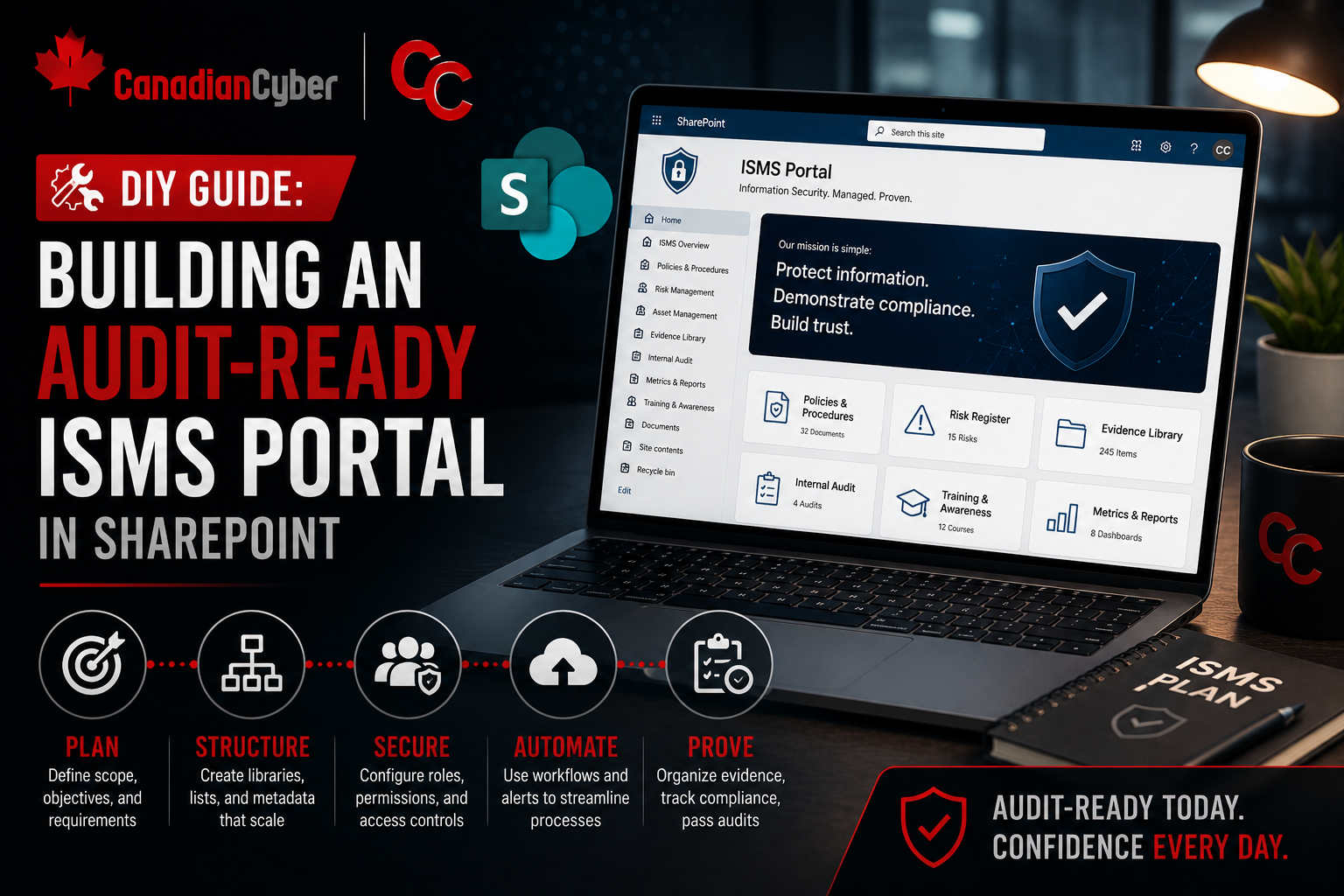
DIY Guide: Building an Audit-Ready ISMS Portal in SharePoint
An ISMS portal should help your team manage security work, prove controls, track reviews, and prepare for audits without last-minute chaos.
Quick Snapshot
| Portal Area | Why It Matters |
|---|---|
| Policies | Keeps approved documents controlled, versioned, and review-ready. |
| Risks & SoA | Tracks risk treatment, control applicability, ownership, and evidence links. |
| Evidence | Makes audit proof searchable by control, owner, period, and review status. |
| Governance | Supports internal audits, management reviews, vendor tracking, incidents, and corrective actions. |
Introduction
An ISMS portal should not be a place where compliance documents go to disappear.
It should help your team manage security work, prove controls, track reviews, and prepare for audits without last-minute chaos.
But many SharePoint ISMS sites start the same way:
- folders for policies
- folders for evidence
- a risk register in Excel
- corrective actions in another spreadsheet
- vendor reviews somewhere else
- audit files copied into multiple places
In simpler terms: an audit-ready ISMS portal in SharePoint should manage the ISMS, not just store it.
Need an Audit-Ready SharePoint ISMS?
Canadian Cyber helps organizations turn folders and spreadsheets into practical SharePoint ISMS portals for ISO 27001, SOC 2, audits, and continuous compliance.
Why Build an ISMS Portal in SharePoint?
SharePoint works well for small and mid-sized teams because it can combine:
- document libraries
- SharePoint Lists
- metadata
- permissions
- version history
- filtered views
- approval workflows
- evidence tracking
The goal is not to build a complicated GRC system. The goal is to create a clean, usable portal that makes evidence easier to find and controls easier to manage.
Step 1: Create a Dedicated ISMS Site
Start with one dedicated SharePoint site.
Use a clear name like:
Information Security Management System
ISMS Portal
Your homepage should link to the core areas:
- Policies
- Risk Register
- Statement of Applicability
- Evidence Library
- Corrective Actions
- Vendor Register
- Incident Register
- Internal Audit
- Management Review
- Templates
Step 2: Build a Controlled Policy Library
Create a document library for policies, procedures, standards, and templates.
| Metadata Field | Purpose |
|---|---|
| Owner | Shows accountability |
| Document Type | Policy, procedure, standard, template |
| Version | Supports document control |
| Approval Status | Draft, pending, approved, archived |
| Approval Date | Shows governance |
| Next Review Date | Prevents stale policies |
| Related Control | Links to ISO 27001 or SOC 2 requirement |
Create views for:
- approved policies
- policies pending approval
- policies due for review
- archived documents
Step 3: Create a Risk Register List
Use a SharePoint List, not only Excel.
Recommended fields:
- Risk ID
- Risk Title
- Risk Description
- Risk Owner
- Asset or Process
- Inherent Risk
- Existing Controls
- Residual Risk
- Treatment Decision
- Treatment Action
- Due Date
- Status
- Review Date
- Evidence Link
Create views for:
- high residual risks
- overdue treatment actions
- risks by owner
- risks due for review
Step 4: Add a Statement of Applicability Tracker
For ISO 27001, create a SoA list.
| Track | Why It Helps |
|---|---|
| Control ID and control name | Identifies each ISO 27001 control |
| Applicable or not applicable | Clarifies control applicability |
| Justification | Explains why the control applies or does not apply |
| Implementation status | Shows whether the control is implemented, partial, or planned |
| Owner | Creates accountability |
| Linked policy and evidence | Shows how implementation is supported |
This helps auditors quickly see what applies, why it applies, how it is implemented, and where evidence lives.
Step 5: Build an Evidence Library With Metadata
Do not create only folders. Create an evidence library with metadata.
| Metadata Field | Purpose |
|---|---|
| Evidence ID | Unique record |
| Control Area | Access, vendor, incident, backup, and more |
| Control Reference | ISO clause, SOC 2 control, internal ID |
| Evidence Type | Screenshot, report, log, ticket, minutes |
| Owner | Person responsible |
| Period Covered | Audit period |
| Collection Date | Freshness |
| Review Status | Submitted, reviewed, accepted, needs update |
Create views for:
- evidence by control
- evidence by owner
- evidence needing review
- evidence for current audit period
Step 6: Create a Corrective Action Tracker
Corrective actions should be managed as live work items.
Recommended fields:
- Action ID
- Source
- Issue Description
- Root Cause
- Owner
- Priority
- Due Date
- Status
- Evidence Link
- Verified By
- Closure Date
Create views for:
- overdue actions
- high-priority actions
- pending verification
- closed actions
Step 7: Add Vendor and Third-Party Tracking
Create a vendor register with:
- Vendor Name
- Service Provided
- Business Owner
- Data Handled
- Criticality
- Security Evidence Reviewed
- Contract or DPA Status
- Last Review Date
- Next Review Date
- Open Issues
Create views for:
- critical vendors
- vendors due for review
- vendors missing evidence
- vendors with open issues
Step 8: Track Incidents and Near Misses
Create an incident register.
Recommended fields:
- Incident ID
- Date Detected
- Reported By
- Incident Type
- Severity
- Owner
- Affected Systems
- Response Actions
- Closure Summary
- Lessons Learned
- Corrective Action Link
Track near misses too. They show the ISMS is learning and improving.
Step 9: Build an Internal Audit Workspace
Create a section for:
- audit plan
- audit checklist
- evidence request tracker
- interview notes
- findings
- internal audit report
- linked corrective actions
A simple evidence request list should include:
- request ID
- control area
- owner
- due date
- evidence link
- status
- reviewer notes
Step 10: Create a Management Review Area
Management review should have its own library.
Store:
- agenda
- minutes
- risk summary
- audit results
- incident summary
- corrective action status
- vendor review status
- improvement actions
This proves leadership oversight and supports continual improvement.
Step 11: Set Permissions Properly
Audit-ready does not mean everyone can see everything.
| Group | Access |
|---|---|
| ISMS Owners | Full control |
| Compliance Team | Edit |
| Control Owners | Contribute to assigned areas |
| Internal Auditors | Read or review access |
| Leadership | Read dashboards and management review |
| External Auditors | Time-limited read-only |
| General Employees | Approved policies only |
Restrict sensitive areas like:
- incident records
- access reviews
- vulnerability evidence
- audit findings
- management review notes
Step 12: Add Dashboards and Views
Filtered SharePoint views can act like simple dashboards.
| Policies due for review |
| Risks due for review |
| High residual risks |
| Overdue corrective actions |
| Evidence needing review |
| Vendors due for reassessment |
| Open audit findings |
| Incidents awaiting closure |
Common Mistakes to Avoid
- Using folders only: Folders do not track owners, due dates, or review status.
- Keeping trackers in Excel forever: Lists are better for recurring compliance work.
- Uploading evidence without metadata: Evidence without context is weak.
- Giving broad permissions: Compliance evidence can be sensitive.
- Not linking evidence to controls: Auditors need to see what each file proves.
- Forgetting review dates: An ISMS must be maintained, not just built.
Turn SharePoint Into an ISMS Engine
Canadian Cyber helps teams design ISMS portals with libraries, lists, metadata, permissions, filtered views, evidence tracking, and audit-ready workflows.
Canadian Cyber’s Take
At Canadian Cyber, we often see SharePoint ISMS sites that look organized but fail under audit pressure because they were designed as storage spaces.
A better ISMS portal should support:
- ownership
- review cycles
- evidence readiness
- corrective action closure
- risk treatment
- vendor oversight
- internal audit
- management review
That is how SharePoint becomes an ISMS engine.
Takeaway
An audit-ready ISMS portal in SharePoint should include:
- controlled policy library
- risk register
- Statement of Applicability tracker
- evidence library
- corrective action tracker
- vendor register
- incident register
- internal audit workspace
- management review area
- templates
- permissions and filtered views
Audit readiness is not about having more files. It is about having a system that proves your controls are owned, reviewed, evidenced, and improving.
How Canadian Cyber Can Help
At Canadian Cyber, we help organizations build practical SharePoint ISMS portals for ISO 27001, SOC 2, internal audits, and continuous compliance.
- SharePoint ISMS portal design
- risk and SoA tracker setup
- evidence library metadata
- corrective action workflows
- vendor and incident tracking
- permission governance
- internal audit and management review structures
- vCISO guidance for ISMS operations
Stay Connected With Canadian Cyber
Follow Canadian Cyber for practical guidance on SharePoint ISMS portals, ISO 27001, SOC 2, audit readiness, evidence management, and vCISO support.